Skip to content

Unlimited Long Video to Shorts

No Monthly Conversion Limits. Buy Once. Keep It Forever.

1 long video AI finds best moments
multiple shorts

AUTO FRAMINGDetect · Track · Reframe
API KEYSAI · Premium Captions
CAPTIONSGenerate · Edit · Style
Download for Windows Buy a license

Windows available now. Mac coming soon.

LONG VIDEO16:9
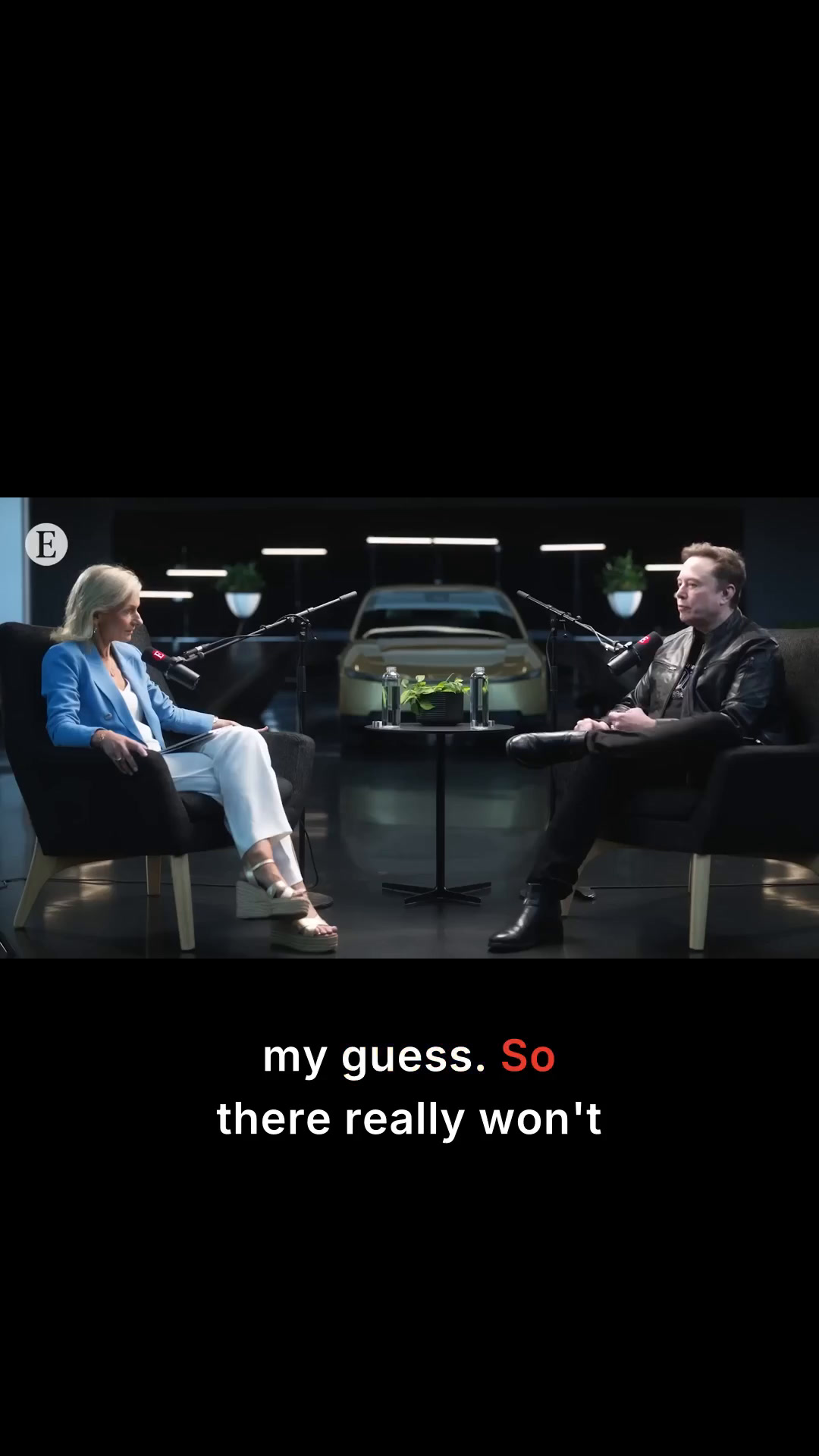
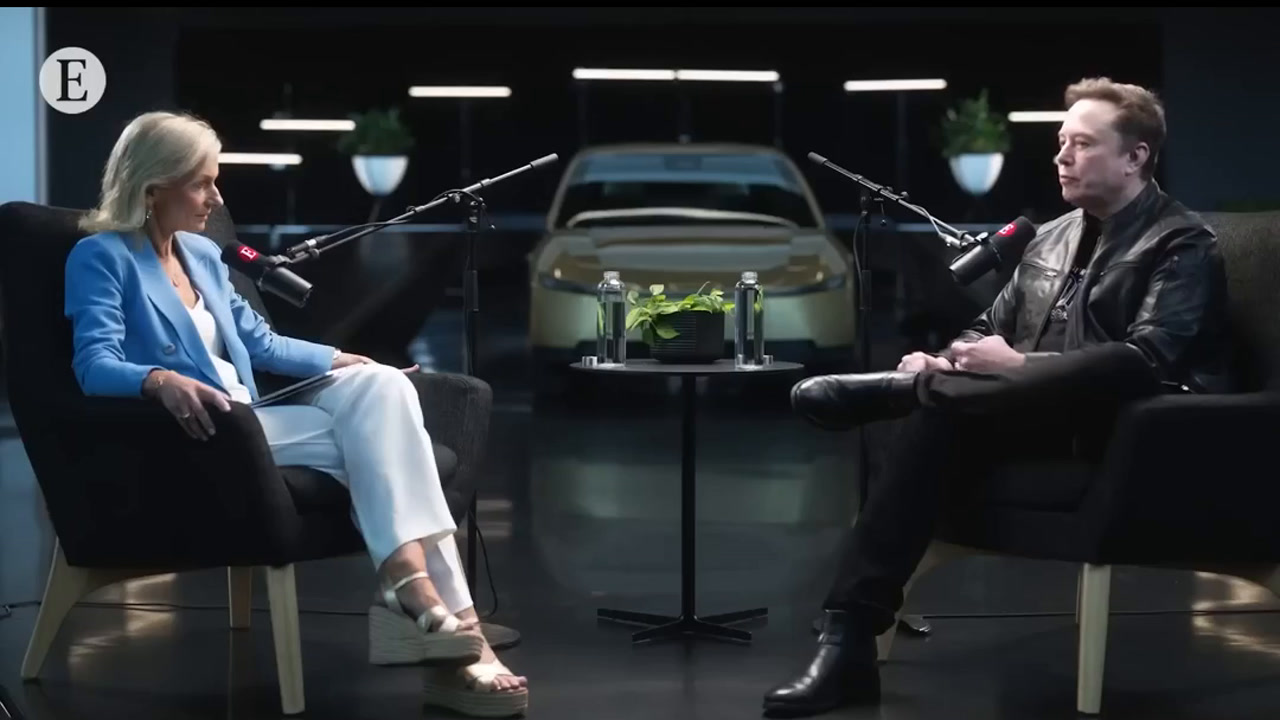
Wide interview shot showing both speakers seated apart Long-form source video
SHORT 019:16
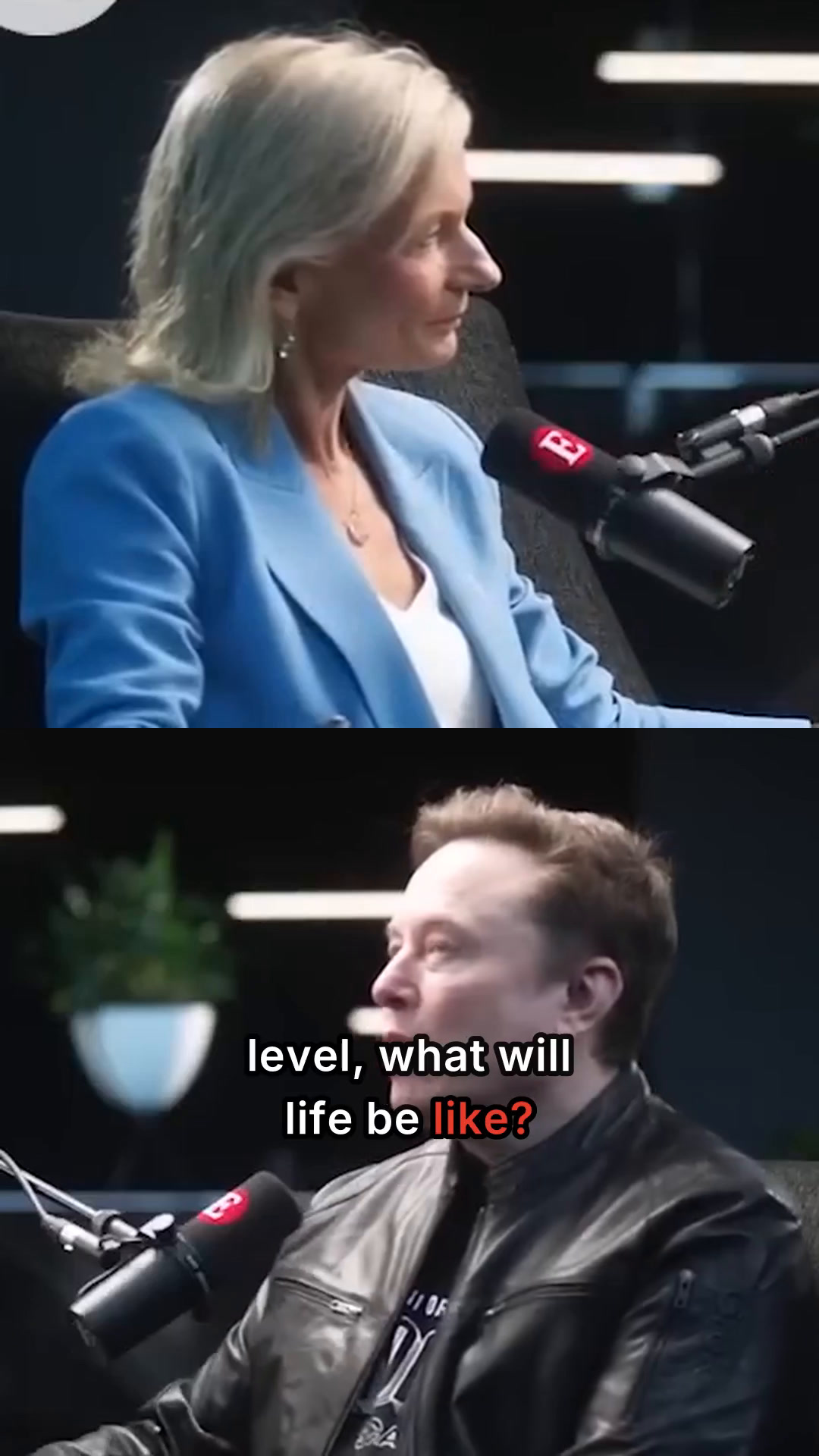
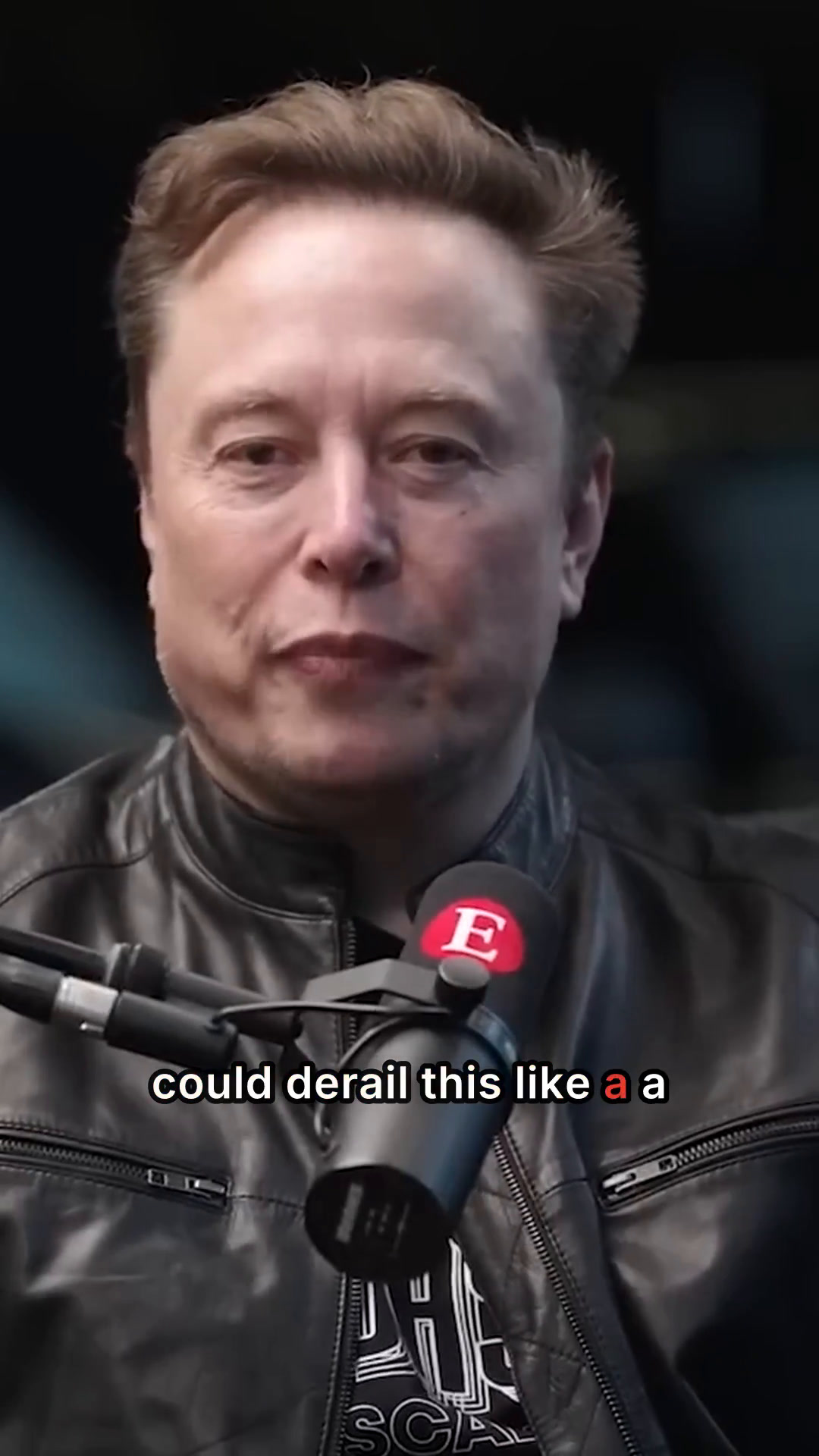
Vertical close-up of interview speaker Single-speaker crop
SHORT 029:16
Vertical wider interview view preserving conversation context Conversation context
SHORT 03DUAL CROP
Vertical dual-crop view of both interview speakers Dual crop
A long-form interview transformed into focused short-form outputs.

HOW IT WORKS

Automatically find the best moments and export shorts.

  1. 01

    Fast transcription

    YouTube transcript or free local transcription.

    FREE LOCAL OPTION
  2. 02

    AI finds best moments

    Find strong clips with free local AI or low-cost cloud AI.

    LOCAL + CLOUD
  3. 03

    Auto framing

    Tracks subjects and reframes for vertical shorts.

    TRACK + REFRAME
  4. 04

    Preview or quick export

    Preview first, or auto-export when clips are ready.

    YOU CHOOSE

FEATURES

Auto tracks a
moving subject

UseShorts automatically follows the subject and keeps them framed as they move — creating clean vertical shorts without manual reframing.

  • Tracks movement automaticallyFollows the subject as they move through the shot.
  • Keeps the subject framedMaintains a clean composition without manual reframing.
  • Built for vertical shortsDesigned for 9:16 short-form output.

Auto wide to
dual crop framing

UseShorts shows the wider podcast or interview setting first, then switches to tighter Dual Crop framing when the conversation needs a closer view.

  • Shows the full settingGives viewers a clear sense of the podcast or interview environment.
  • Switches to Dual CropAutomatically creates clean close-ups of each speaker when tighter framing works better.
  • Keeps the story visually clearStarts with the wider context, then moves closer without losing the sense of where the conversation is happening.

Auto reframes from
A-roll to B-roll

UseShorts intelligently reframes between the main speaker and supporting context, helping your shorts feel more dynamic without manual editing.

  • Shifts focus automaticallyMoves between the main speaker and supporting visual context.
  • Keeps the story movingAdds variation so talking-head clips feel more dynamic.
  • Built for short-formDesigned for 9:16 social video output.

Auto reframes for
better context

UseShorts intelligently adjusts the framing to keep more context in view — widening or repositioning the frame when needed.

  • Adjusts framing intelligentlyWidens or repositions the frame when more context is needed.
  • Keeps important context visiblePreserves more of the scene around the subject.
  • Makes clips easier to followShows the context viewers need without manual reframing.

USE CASES

Built for the way creators actually work.

Turn podcasts, interviews, videos and lessons into branded shorts without rebuilding every clip by hand.

PODCASTERS & INTERVIEWERS

Turn long conversations into multiple short-form clips.

Dual Crop handles two-person conversations, contextual reframing keeps the scene understandable, and Premium Captions help turn long conversations into polished short-form clips.

  • DUAL CROP
  • PREMIUM CAPTIONS
  • CONTEXTUAL REFRAMING

Long conversation → multiple 9:16 shorts

YOUTUBERS & CREATORS

Find the moments worth clipping without scrubbing the whole video.

Local AI discovers promising moments, analyzes them and scores them so you can focus on the strongest clips.

  • LOCAL AI
  • CLIP SCORING
  • QUICK EXPORT

Long video → ranked clip moments

COACHES & EDUCATORS

Turn lessons, webinars and calls into short, reusable content.

Auto Tracking follows the speaker, while captions, automatic reframing and Preview Before Export help turn useful teaching moments into polished vertical clips.

  • AUTO TRACKING
  • STATIC CAPTIONS
  • PREVIEW

One session → multiple reusable shorts

FREELANCERS & AGENCIES

Create consistent shorts for different clients without rebuilding the branding every time.

Save multiple brand profiles with caption styles, fonts, colors, watermarks, logos and end-of-clip messages, then switch between clients as needed.

  • BRAND PROFILES
  • WATERMARKS
  • END CARDS

One workflow → multiple client brands

Simple pricing.

Buy once for ongoing use, or subscribe for a short-term project.

FREE TRIAL

Try UseShorts Free

2 free video conversions. No credit card required.

One source video can produce multiple shorts while using one conversion. Up to 60 minutes per source video. Trial exports carry a UseShorts watermark.

Trial processing is currently paused.

BUY ONCE

$79.90

one-time

For 1 computer

One payment. No monthly app fee.

Computers
Buy License — $79.90

Live checkout coming soon.

  • No monthly conversion caps
  • Auto Tracking + Smart Framing
  • Local + Cloud AI options
  • Editable captions
  • Flexible export — 9:16 and more
  • Add your brand logo
  • Windows available now. Mac coming soon.
  • 1 year of updates included

Keep using your current version after year 1.Renew updates only if you want newer versions.

SHORT-TERM OPTION

$14.90/ month

1 computerCancel anytime.

Need UseShorts for a short project?Subscribe monthly instead.

Subscribe — $14.90/mo

Live checkout coming soon.

Includes the same core UseShorts features while subscribed.

Optional cloud AI usage is billed separately.

Both options include the same core UseShorts features. Only the payment method changes.

FAQ

Questions, answered.

AI, Cost & Privacy

How can UseShorts offer unlimited AI Auto Clipping without monthly caps?

UseShorts can offer unlimited Auto Clipping because transcription and AI clip discovery can run locally on your own computer, without per-minute processing fees or conversion credits.

Premium captions are part of the normal workflow and use a required third-party caption service. At the current provider offer and pricing, new users receive $200 in free credits, while a typical 1-minute clip costs about $0.01 to caption. That is enough for roughly 20,000 one-minute clips, making premium caption usage effectively near-unlimited for most individual users.

Optional cloud AI for clip discovery is also available if you prefer it, with usage charged separately by your chosen cloud provider, estimated at around $0.01 for a typical 60-minute video using a low-cost AI model. Actual costs vary with video length, model, and usage.

Does UseShorts upload my videos to the cloud?

Your full source video does not need to be uploaded to a cloud server when you use UseShorts' local processing options.

Local transcription, local AI clip discovery, framing, preview and export can run on your computer.

There are two exceptions to understand:

Premium captions: the audio needed for the selected clip must be sent to the third-party caption service so it can generate accurate caption timing.

Optional cloud AI: if you choose cloud AI for clip discovery, the transcript text required for analysis is sent to your configured cloud provider.

UseShorts does not require your entire source video to be uploaded just to find clips or create exports.

Is UseShorts' local AI actually good at finding clips?

Yes. UseShorts runs Qwen3.5 locally and is tuned specifically for clip-moment discovery rather than general chat.

The recommended Best Quality option uses Qwen3.5-4B Q4_K_M, while the Faster option uses Qwen3.5-2B Q4_K_M. Both run through llama.cpp on your computer.

UseShorts analyzes each discovered moment and gives it a score, helping you focus on the strongest clip candidates instead of reviewing everything manually.

On supported Windows PCs, local processing can use NVIDIA/CUDA acceleration. On Apple Silicon Macs, the same local model/runtime approach is designed to use Metal acceleration.

That gives you fast, private local clip discovery with no per-minute AI fees, while optional cloud AI remains available if you want another analysis option.

What system requirements are recommended for UseShorts?

UseShorts is designed to run on ordinary modern Windows PCs and Apple Silicon Macs. A dedicated GPU is not required, but faster hardware will reduce processing time.

Windows: Windows 10/11 64-bit, a modern 4-core Intel or AMD processor, 16 GB RAM recommended, and at least 10 GB of free storage for UseShorts and its local AI models, plus additional space for your videos and exports.

Mac: Apple Silicon M1 or newer, 16 GB unified memory recommended, and at least 10 GB of free storage, plus space for your videos and exports.

On Windows, an NVIDIA GPU with 6 GB+ VRAM can make Local AI substantially faster, but UseShorts can also run without a dedicated GPU. On Apple Silicon, local AI can use Metal acceleration.

Older or less powerful computers may still be usable, but transcription, AI clip discovery, framing and export will take longer. If speed matters, UseShorts also includes a smaller Faster local AI model that uses less memory and completes analysis more quickly.

For the best experience, we recommend 16–32 GB RAM and an NVIDIA GPU on Windows, or an Apple Silicon Mac with 16–24 GB+ unified memory.
Auto Clipping & Editing

How does UseShorts Auto Clipping work?

UseShorts turns a long video into multiple shorts by transcribing the source, finding promising moments, preparing the framing and captions, and getting each clip ready for preview or export.

The workflow is:

Long video → transcription → AI finds best moments → framing and captions → preview or quick export.

You can let UseShorts automate most of the process while still reviewing clips before export when you want more control.

How does UseShorts Auto Tracking and Smart Framing work?

UseShorts automatically reframes long-form video for short-form layouts, reducing the amount of manual cropping and keyframing you need to do.

Depending on the scene, UseShorts can:

  • track a moving subject;
  • turn wide two-person conversations into Dual Crop framing;
  • move between speaker-focused and supporting contextual views;
  • preserve a wider view when seeing more of the scene is useful.

The result is a vertical short that adapts to what is happening in the source video.

What caption styles does UseShorts support?

UseShorts supports editable Static captions and Current Word captions.

Static captions display the caption text without highlighting each spoken word.

Current Word captions highlight the current word as it is spoken, creating the dynamic karaoke-style effect commonly used in short-form videos.

Both styles can be edited and styled before export.

Export & Branding

Can I preview my shorts before exporting them?

Yes. UseShorts lets you preview prepared clips so you can check the selected moment, framing and captions before export.

If you prefer speed, you can instead use the quicker automatic export workflow and let UseShorts prepare and export clips as they become ready.

You choose between more review control and greater automation.

Can I make every UseShorts clip match my brand—or my clients’ brands?

Yes. UseShorts helps you keep every short instantly on-brand—for your own business or for multiple clients.

Save reusable brand profiles with your preferred caption style, fonts, colors, watermark, logo and end-of-clip message.

When you work with different clients, simply switch profiles instead of rebuilding the branding for every export.